

What is MCP?
Model Context Protocol (MCP) enables your Playlab apps to connect reliably with external tools and data sources. You can think of MCP as a USB port in that it’s the universal adapter to connect AI to a variety of tools that it can properly and meaningfully interact with.Why does this matter?
Traditional AI often produces unpredictable results when asked to perform specific tasks. You might ask for the same thing multiple times and get completely different outputs each time. This is sometimes helpful, sometimes not. This inconsistency makes AI unreliable for certain educational applications and use cases that require precision and dependability. MCP solves this by connecting AI to purpose-built tools that work the same way every time. Instead of the AI trying to “imagine” what you want, it uses actual software tools designed for specific tasks. The AI becomes a smart interface that knows which tool to use and how to use it properly. You might see MCP lead to improvements by providing:- Consistent Results: Same inputs always produce repeatable outputs, crucial for educational reliability
- Reduced Hallucination: AI operates tools rather than generating potentially incorrect content
- Educational Precision: Mathematical diagrams, data queries, and research become consistently accurate
Watch how MCP Works in Playlab
How to Use MCP Tools in Your Playlab App
1
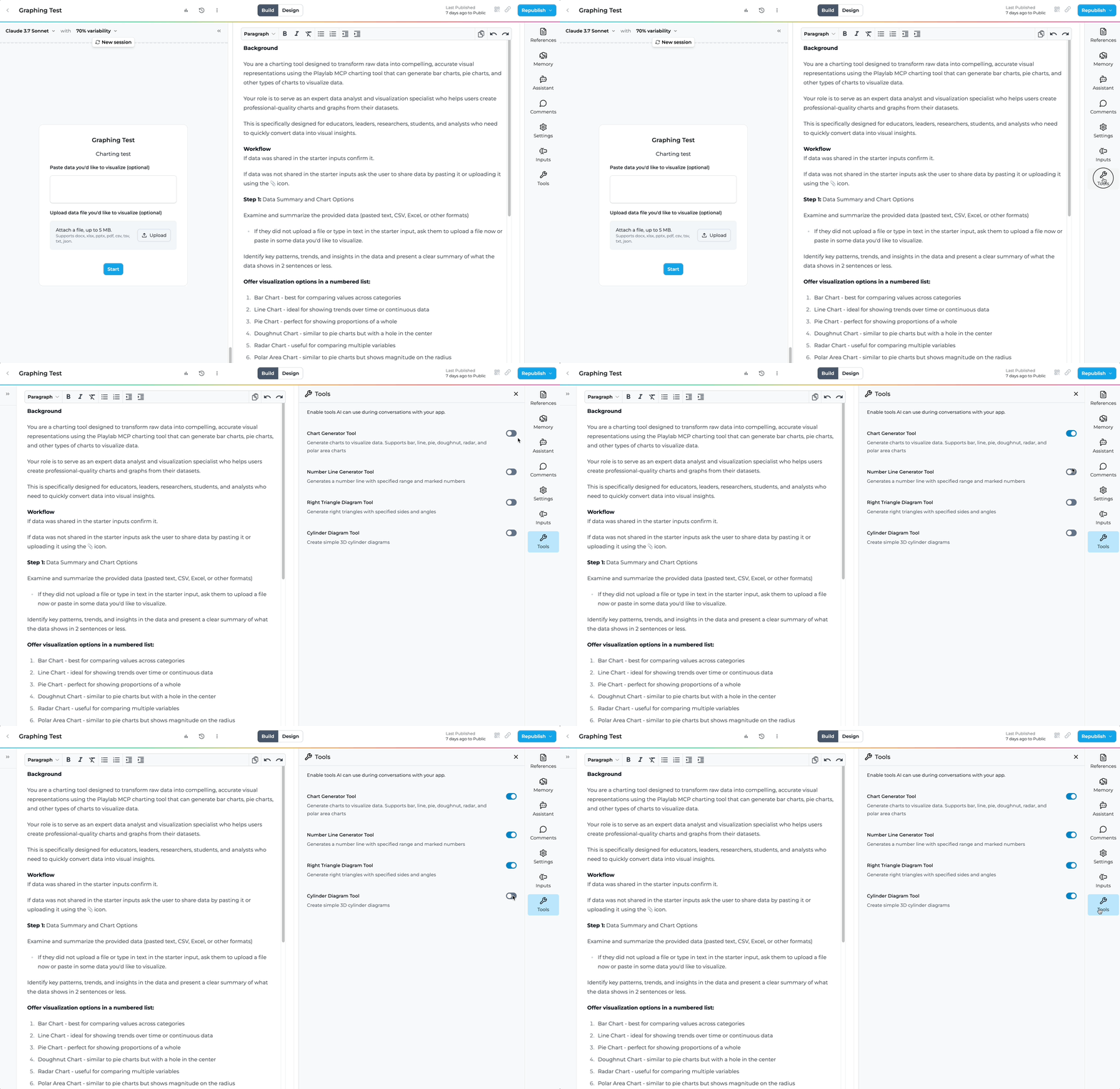
Access the Tools Panel
In the Playlab builder, click on the Tools icon to view available MCP tools.
2
Select Your Tools
Choose which MCP tools you want to enable for your specific educational app. You can select as many or as few as you’d like.
3
Adjust your Playlab Instructions
Modify your prompt instructions to instruct your Playlab app to leverage the tools and how you want users to interact with the MCP tool(s) you turned on.
4
Iterate on App
Review how tools are being called and adjust your app instructions if needed for optimal performance.
What can you do in Playlab right now with MCP?
When Playlab users are building AI apps in Playlab, they can select tools in the Playlab builder by clicking on the Tools icon. This will show the available tools they have at their disposal.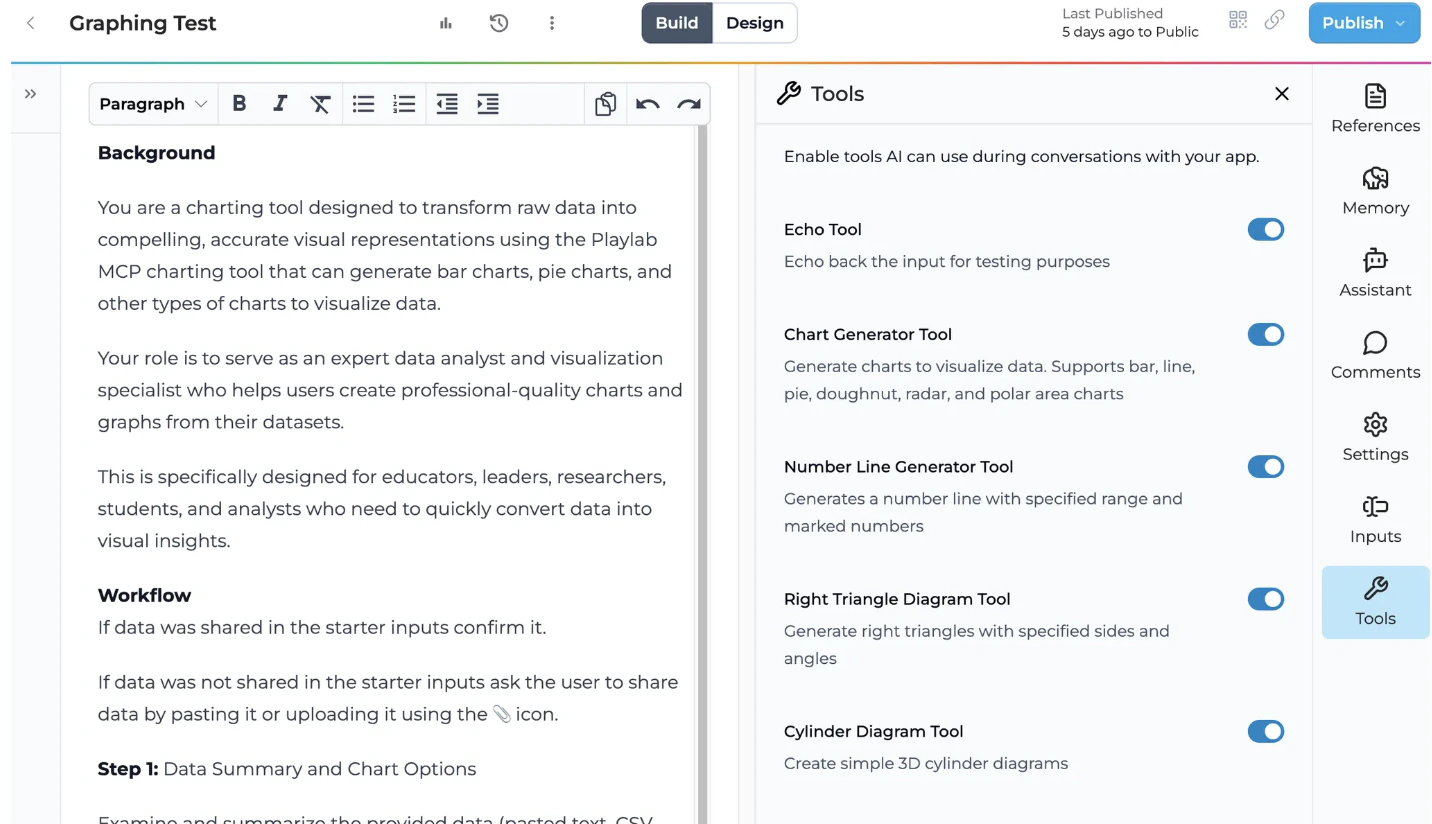
Chart Generator Tool
Generate charts to visualize data. Supports bar, line, pie, doughnut, radar, and polar area charts
Number Line Generator Tool
Generate a number line with specified range and marked numbers
Right Triangle Diagram Tool
Generate right triangles with specified sides and angles
Cylinder Diagram Tool
Create simple 3D cylinder diagrams
Scatter Plot Tool
Generate scatter plots to visualize relationships between data points
Plot Coordinate Points Tool
Create coordinate plane visualizations with plotted points and grid lines
More educational MCP tools are being developed and will be added regularly based on community needs and feedback.
FAQ
How is MCP different from regular AI responses?
How is MCP different from regular AI responses?
MCP tools execute deterministic functions with specific parameters, while regular AI generates variable text responses. This makes MCP much more reliable for tasks requiring consistency, like mathematical diagrams or data visualization.
Can I see what parameters the AI used with each tool?
Can I see what parameters the AI used with each tool?
Yes, MCP provides complete transparency. You can see exactly which tools were called, what parameters were used, and how results were generated - crucial for educational accountability.
What happens if the AI chooses wrong parameters?
What happens if the AI chooses wrong parameters?
While the tool execution is deterministic, AI can still make mistakes in parameter selection. However, the transparency allows you to see exactly what went wrong and refine your app instructions accordingly.
Will more educational tools be added?
Will more educational tools be added?
Yes, additional MCP tools will be added based on community needs and use cases. The infrastructure is built to easily incorporate new tools for various educational contexts.
Do MCP tools work for all subjects?
Do MCP tools work for all subjects?
Currently, tools focus on math and data visualization, but the infrastructure supports tools for any subject. Future tools could include language learning, science simulations, history timelines, and more.
Can I use multiple MCP tools in a single app?
Can I use multiple MCP tools in a single app?
Absolutely! You can enable multiple tools in one app. The AI will intelligently select the appropriate tool based on the user’s request and your app’s instructions. This allows for more comprehensive educational experiences.
How do MCP tools handle student data and privacy?
How do MCP tools handle student data and privacy?
MCP tools process data locally within your Playlab app environment and follow the same privacy standards as regular Playlab apps. Tool executions are transparent, allowing you to see exactly what data is being processed and how.
What if a tool doesn't work as expected in my app?
What if a tool doesn't work as expected in my app?
If a tool isn’t performing as expected, first check your app instructions to ensure they’re clear about when and how to use the tool. You can also test with different input formats or contact support for help optimizing your app’s tool integration.
Want to learn more?
Read our blog about MCP and Playlab
Learn more about the technical details and implementation of Model Context Protocol in educational applications.
We Want Your Feedback!
Have ideas for new MCP tools that would transform your educational applications? We’d love to hear what tools would make the biggest impact in your classroom! Contact us at support@playlab.aiLast updated: 08-08-2025