

What is this feature?
User profiles provide AI with more information to make interactions with your Playlab apps more personalized and targeted. You can now configure how Playlab apps interact with you by setting up a detailed user profile.Rationale for the feature
This feature allows Playlab users to create personalized experiences with AI applications by providing context about themselves, their preferences, and their goals. User profiles help the AI understand who you are and tailor responses accordingly. By defining your preferences, background, and needs upfront, you can receive more relevant and customized responses from Playlab apps without having to repeatedly explain your context in each interaction.How do I set up my user profile?
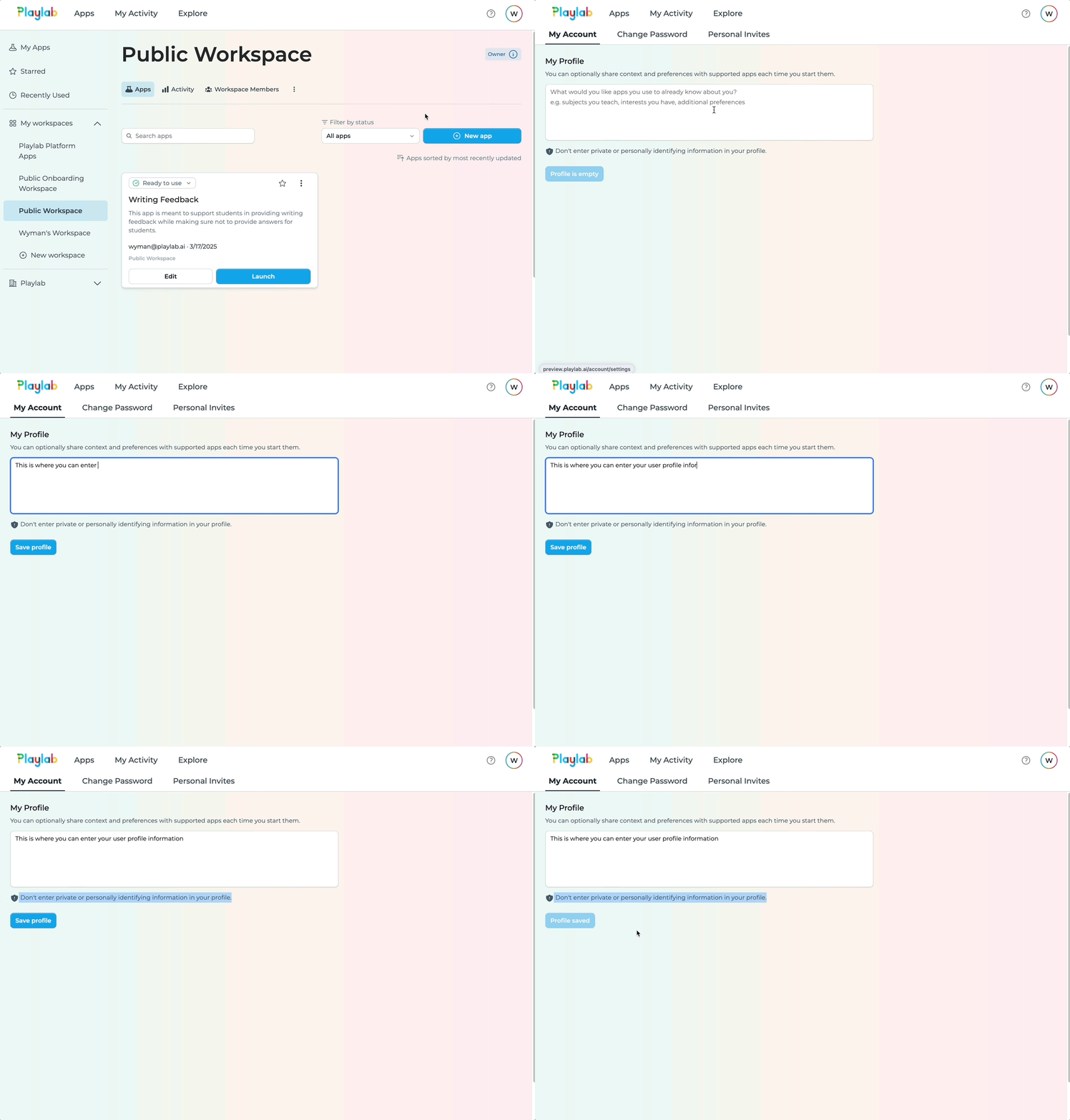
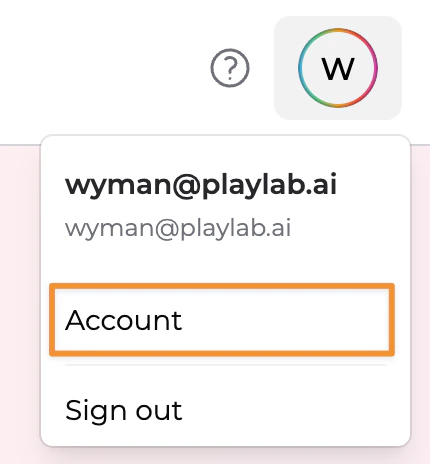
Access your account settings
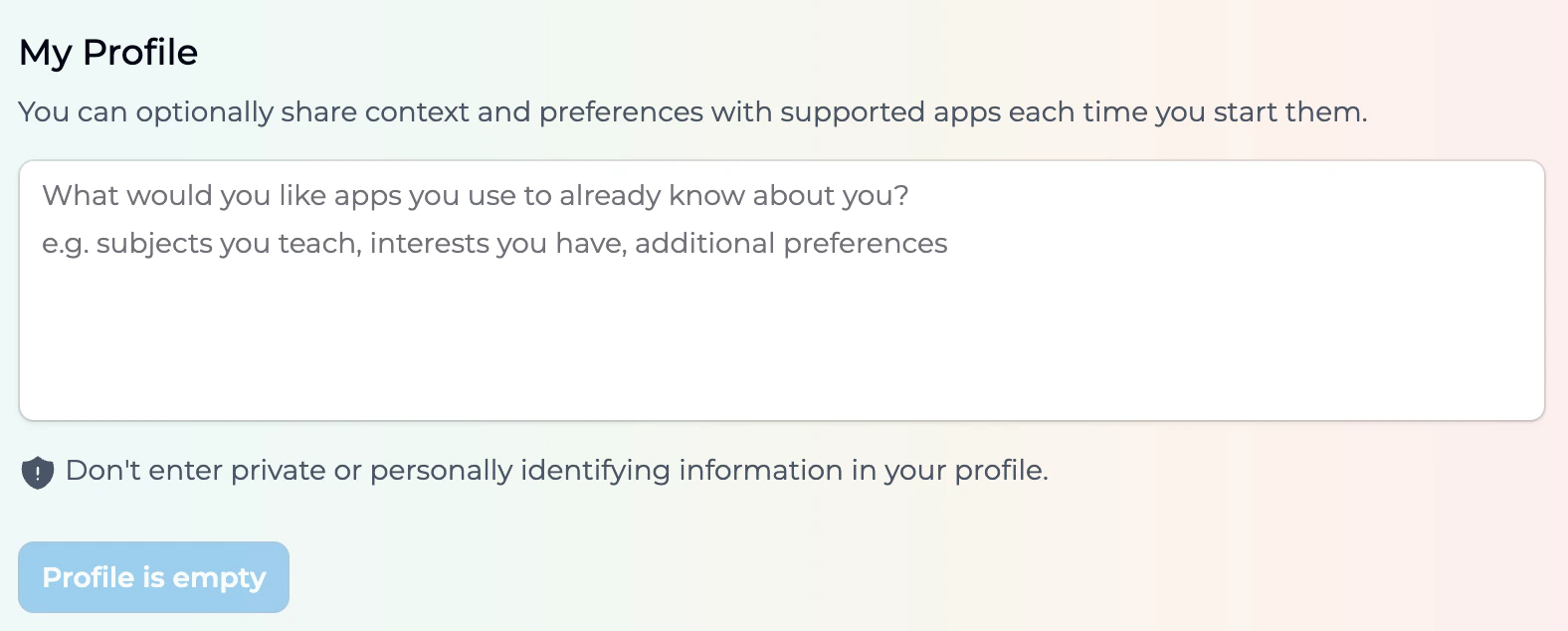
Configure your user profile
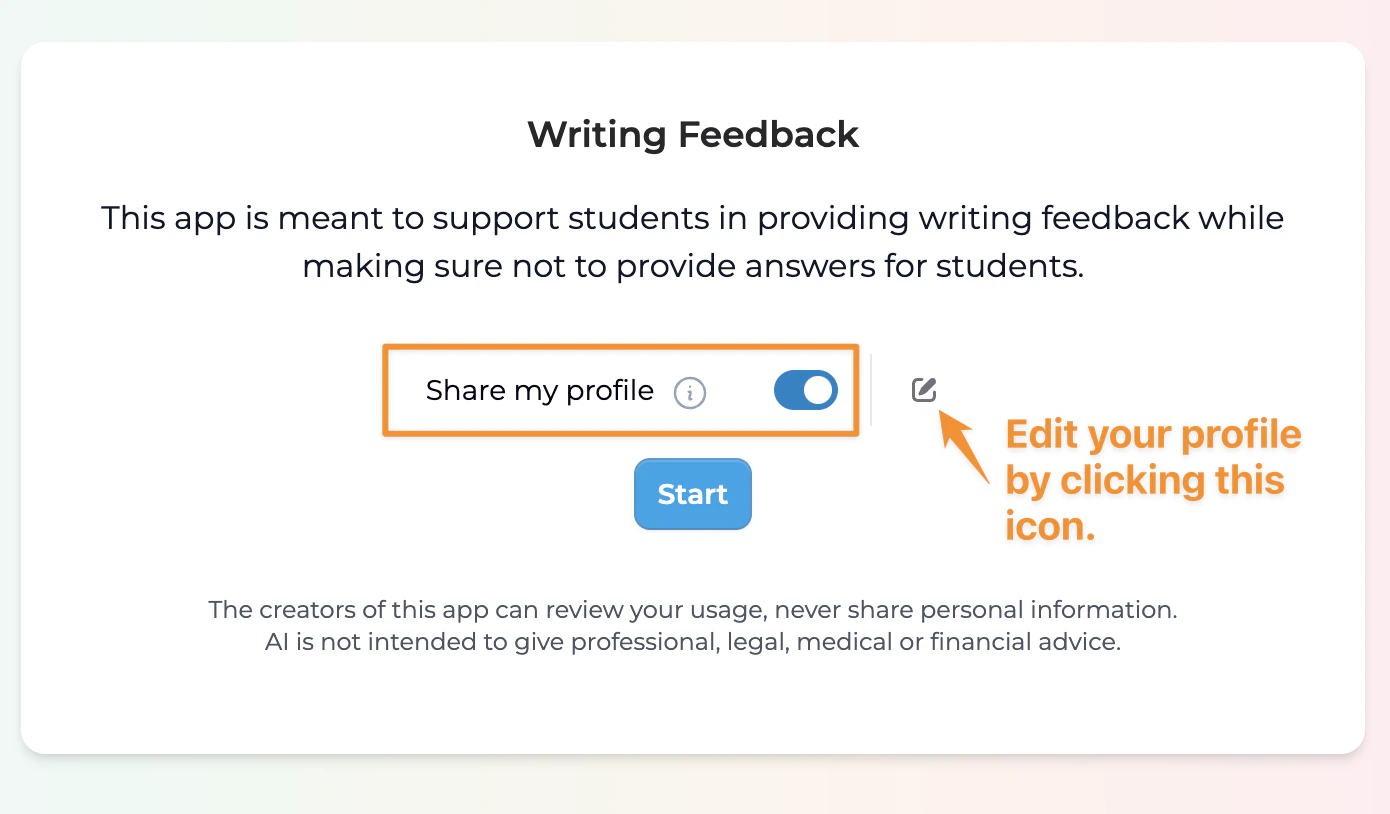
What should I include in my user profile?
When creating your user profile, consider including the following information:Personal Context
Description: Basic information about who you are and your role.
Examples:
- Professional background
- Industry or field
- Role (teacher, student, professional, etc.)
- Location (when relevant)
Interests & Goals
Description: What you’re interested in and what you hope to achieve.
Examples:
- Subject areas of interest
- Skills you’re developing
- Short-term or long-term goals
- Projects you’re working on
Communication Preferences
Description: How you prefer to receive information and interact.
Examples:
- Preferred language
- Level of detail (concise vs. comprehensive)
- Tone preferences (formal, conversational, etc.)
- Format preferences (bullet points, paragraphs, etc.)
Educational Context
Description: Information related to learning or teaching needs.
Examples:
- Grade level (for students or teachers)
- Subject areas taught or studied
- Learning style preferences
- Curriculum frameworks used
Example User Profiles
Here are some example user profiles to help you get started:Luna - Middle School Science Teacher
Luna - Middle School Science Teacher
“I’m Luna, a middle school science teacher that teaches environmental science in a large high school in Queens, New York. I like to speak conversationally and without jargon. I prefer to get to the point as quickly as possible."
Rachel - High School Senior
Rachel - High School Senior
"I’m Rachel, a high school senior interested in math and social studies. My goal is to find my own unique writing style and get rid of writer’s block. I like dry humor and puns."
Penny - Non-Profit Director
Penny - Non-Profit Director
"I’m Penny and run a non-profit food bank in Atlanta. I am interested in getting multiple perspectives and getting challenged and questioned.”
Tips for Creating Effective User Profiles
Best Practices
Be specific and descriptive
Be specific and descriptive
Include your communication preferences
Include your communication preferences
Update your profile as needed
Update your profile as needed
Test with profile toggled on and off
Test with profile toggled on and off
Practical Applications
Educational Settings
Educational Settings
Professional Development
Professional Development
Content Creation
Content Creation
Research and Analysis
Research and Analysis
FAQ
Will my user profile be used across all Playlab apps?
Will my user profile be used across all Playlab apps?
How detailed should my user profile be?
How detailed should my user profile be?
Can I have different profiles for different purposes?
Can I have different profiles for different purposes?
Is my profile information private?
Is my profile information private?
We Want Your Feedback!
Last updated: 3/23/2025