

🧪 This feature is currently in BETA and is available to all Playlab users.
What is this feature?
Reading text on screens can be tiring, especially during long sessions. Voice Output provides text-to-speech playback directly in Playlab, letting you listen to responses while multitasking, taking notes, or resting your eyes. This makes Playlab more accessible and flexible, supporting different learning preferences and enabling hands-free interaction.Voice Output uses your device’s native text-to-speech capabilities, which means all audio is generated locally on your device with complete privacy. Voice quality may vary depending on your operating system and available voices.
What is the Rationale for this feature?
Reading text on screens can be tiring, especially during long sessions or when working through complex information. Many people absorb information better through listening, and audio output enables hands-free interaction with AI. This creates opportunities for multitasking, accessibility for users with visual impairments or reading difficulties, and a more natural conversational experience. The Voice Output feature eliminates the need to read every response by providing text-to-speech playback directly in Playlab. Instead of being tied to your screen, you can listen to Playlab’s responses while taking notes, working on other tasks, or simply resting your eyes. The system provides audio with controls that give you complete control over how you consume information. This makes it easier to work with Playlab in a more flexible, accessible way that adapts to your needs and preferences.How to Use Voice Output
Select your voice
Select the voice that you would like the text-to-speech to use. You can select from the available options in Playlab. For more options you can select “Show More”.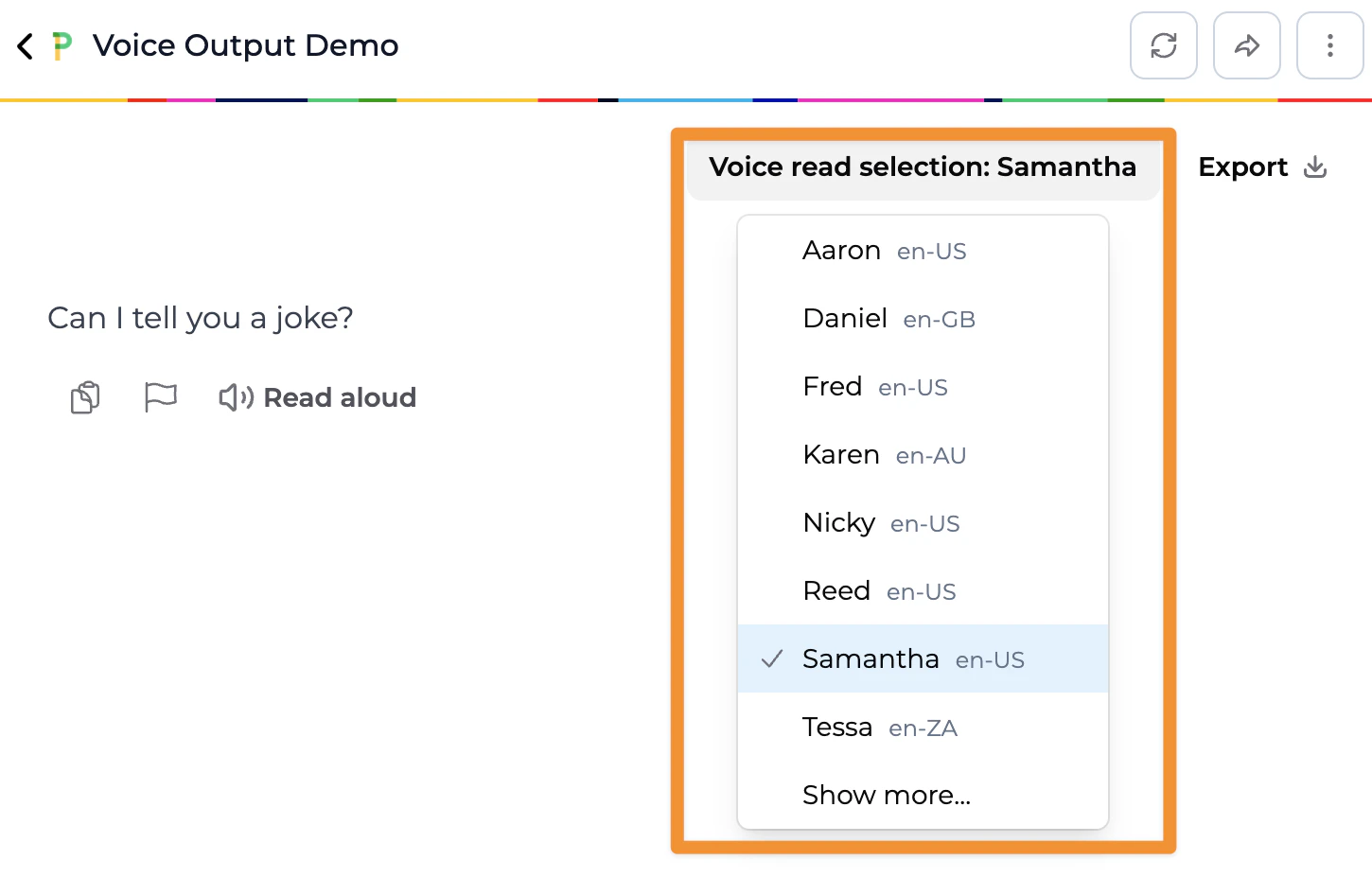
Start Audio Playback
Click the Read Aloud icon underneath the text you want to be read aloud to begin playing the audio version of Playlab’s response. The icon will change to Stop if you want to stop the audio.
Best Practices
Use Headphones in Shared Spaces
Use Headphones in Shared Spaces
Follow Along Visually When Learning
Follow Along Visually When Learning
For educational content or when learning new concepts, consider following along with the text while listening. This helps reinforce understanding through both visual and auditory channels.
Use Voice Output for Long Responses
Use Voice Output for Long Responses
Voice output is particularly valuable for lengthy responses where reading might be fatiguing. This allows you to absorb detailed information while remaining comfortable and potentially multitasking.
Combine with Voice Input for Full Voice Experience
Combine with Voice Input for Full Voice Experience
When used together with voice input, you can create a fully conversational voice experience with Playlab. Speak your questions and listen to responses for a hands-free interaction that feels natural and intuitive.
Known Issues
As this feature is currently in beta, there are a few known limitations to be aware of:Playback May Lag on Very Long Responses
Playback May Lag on Very Long Responses
Issue: For extremely long responses (several paragraphs or more), there may be a brief delay before audio playback begins as the system processes the text.Workaround: The delay is typically only a few seconds. You can start reading the text while waiting for audio to begin, and playback will start automatically once processing is complete.
Code Blocks May Sound Unnatural
Code Blocks May Sound Unnatural
Issue: When responses contain code snippets or technical formatting, the text-to-speech may pronounce elements in ways that sound awkward or are difficult to follow audibly.Workaround: For code-heavy responses, consider reading the text visually while using voice output for surrounding explanatory text. You can also pause playback during code sections.
Mathematical Notation Limitations
Mathematical Notation Limitations
Issue: Complex mathematical equations or special notation may not be read in the most intuitive way by the text-to-speech system.Workaround: For responses with heavy mathematical content, visual reading is recommended. Voice output works best for conceptual explanations and general text.
Voice Quality Variation
Voice Quality Variation
Issue: Voice quality depends on your device’s operating system and installed text-to-speech voices. Some devices may have more limited or less natural-sounding voices than others.Note: The voices available in Playlab depend on your device’s capabilities. Modern devices typically offer good quality voices.
Privacy & Security
Your privacy and security are our top priority. Here’s what you should know about voice output:- Local Processing: Voice output uses your device’s native text-to-speech capabilities. All audio generation happens locally on your device, meaning no voice data is transmitted to external servers.
- Complete Privacy: Because processing is local, your data never leaves your device during voice output. This ensures complete privacy for all content you choose to hear.
- No Data Storage: No audio files are generated or stored. The text-to-speech happens in real-time using your device’s built-in features.
- Under 13 Use: We recommend disabling this feature if your organization has students under age 13 using Playlab.
- Control: You have complete control over when audio plays. Voice output only activates when you explicitly click the speaker icon.
- Device Dependent: Voice quality and available voices depend on your device’s operating system and installed accessibility features.
Frequently Asked Questions
How natural does the voice sound?
How natural does the voice sound?
Voice output uses your device’s built-in text-to-speech voices, so quality will vary depending on your operating system. Modern devices typically offer good quality voices.
What voices are available in Playlab?
What voices are available in Playlab?
The voices available in Playlab depend on your device’s text-to-speech system. You can view and select from the available voices in the voice selection menu within Playlab. Select “Show More” to see additional voice options available on your device.
What languages are supported?
What languages are supported?
Voice output supports any language that your device’s text-to-speech system supports. There might be inconsistencies as the built in voices may not work best with all languages.
Can I change the voice?
Can I change the voice?
Yes! You can select from the available voice options in Playlab’s voice selection menu.
Can I control playback speed?
Can I control playback speed?
Playback speed control is not currently available in this beta version.
Can I skip to specific parts of the response?
Can I skip to specific parts of the response?
Currently you are unable to skip to specific parts of a response.
Does voice output work with all types of content?
Does voice output work with all types of content?
Voice output works best with standard text responses. It handles most content well, though some elements like code blocks, complex mathematical notation, or heavily formatted content may sound less natural when read aloud.
Can I use voice output on mobile devices?
Can I use voice output on mobile devices?
Yes, voice output is available on mobile devices.
Can multiple responses play at once?
Can multiple responses play at once?
No, only one response can play audio at a time. Starting playback on a new response will automatically stop any currently playing audio.
We Want Your Feedback!
Thank you for trying out Voice Output in Playlab. We’re continuously working to improve the voice quality, reliability, and user experience of this feature. Since this is still in beta, your feedback is invaluable. Contact us at support@playlab.aiLast updated: March 15, 2026