

Understanding References
Just as you’d consult textbooks or online resources to enhance your teaching, you can provide similar resources to AI to make its responses more accurate, relevant, and tailored to your Playlab app.Watch How to Add References
Watch a short clip of how to add references to your Playlab app.Adding References Process
Navigate to Your App
- Go to your Playlab workspace dashboard
- Find and open the app you wish to modify in edit mode
Access References Tab
- Click on the “References” tab in the sidebar menu
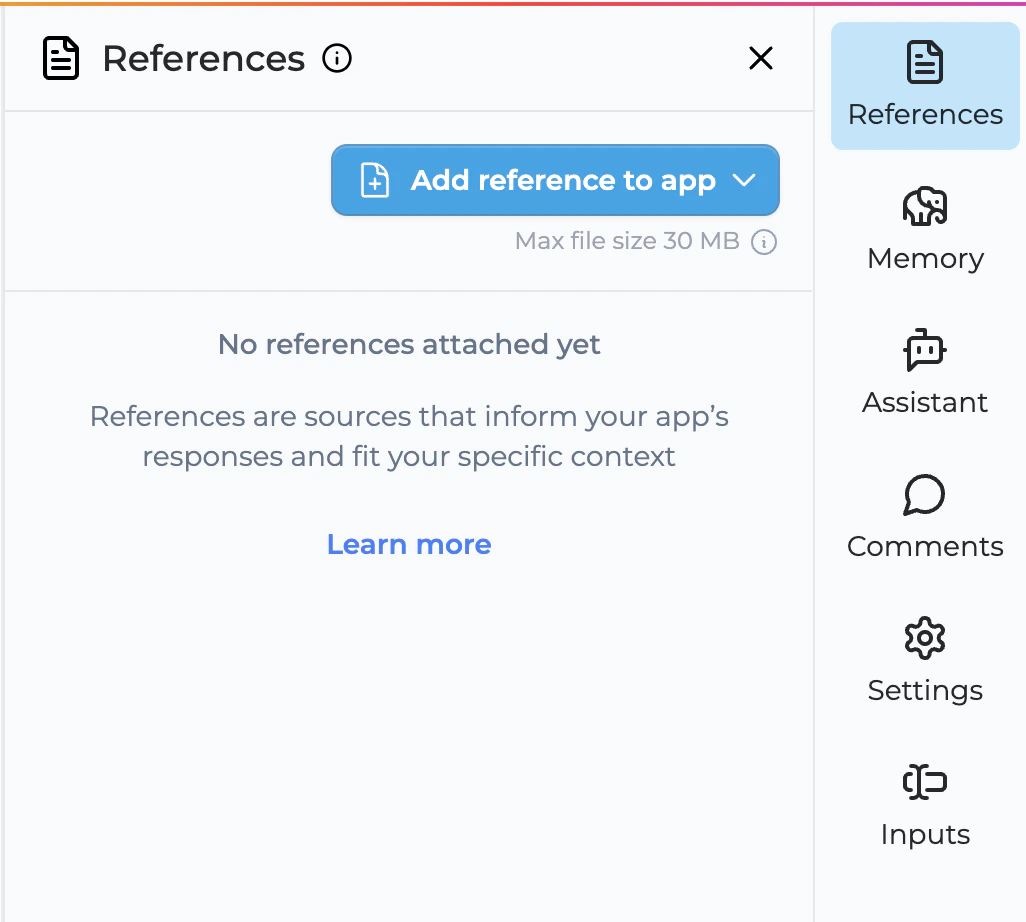
Add References
- Click the blue “Add reference to app” button
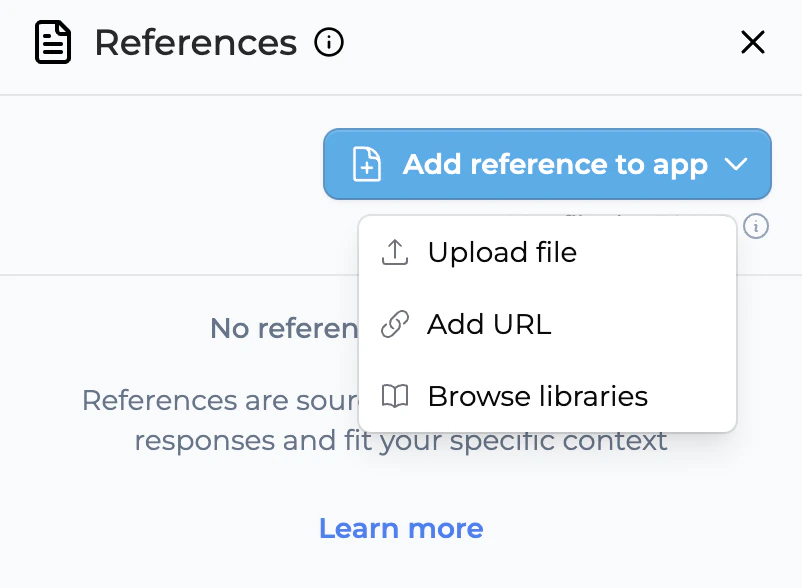
- Select from these reference options:
- File Upload: Upload documents directly from your computer (up to 20 files at once)
- Public URL: Link to publicly accessible web resources
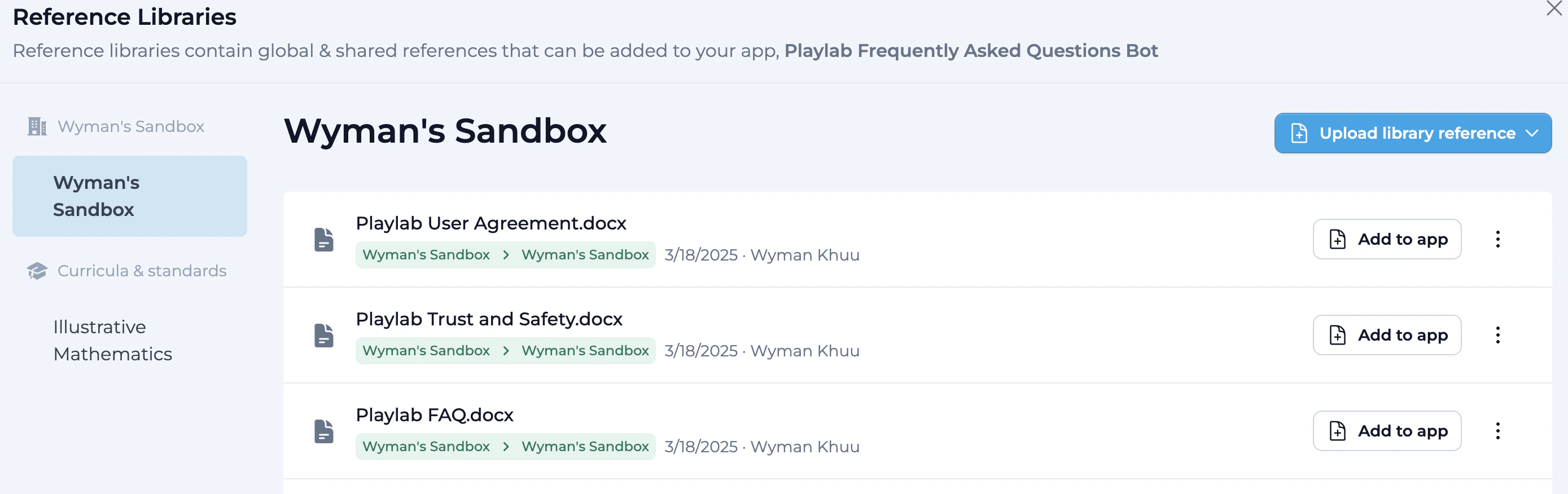
- Browse Library: Access pre-curated reference collections
- Organization Reference Library
- Global References (curricula and standards)
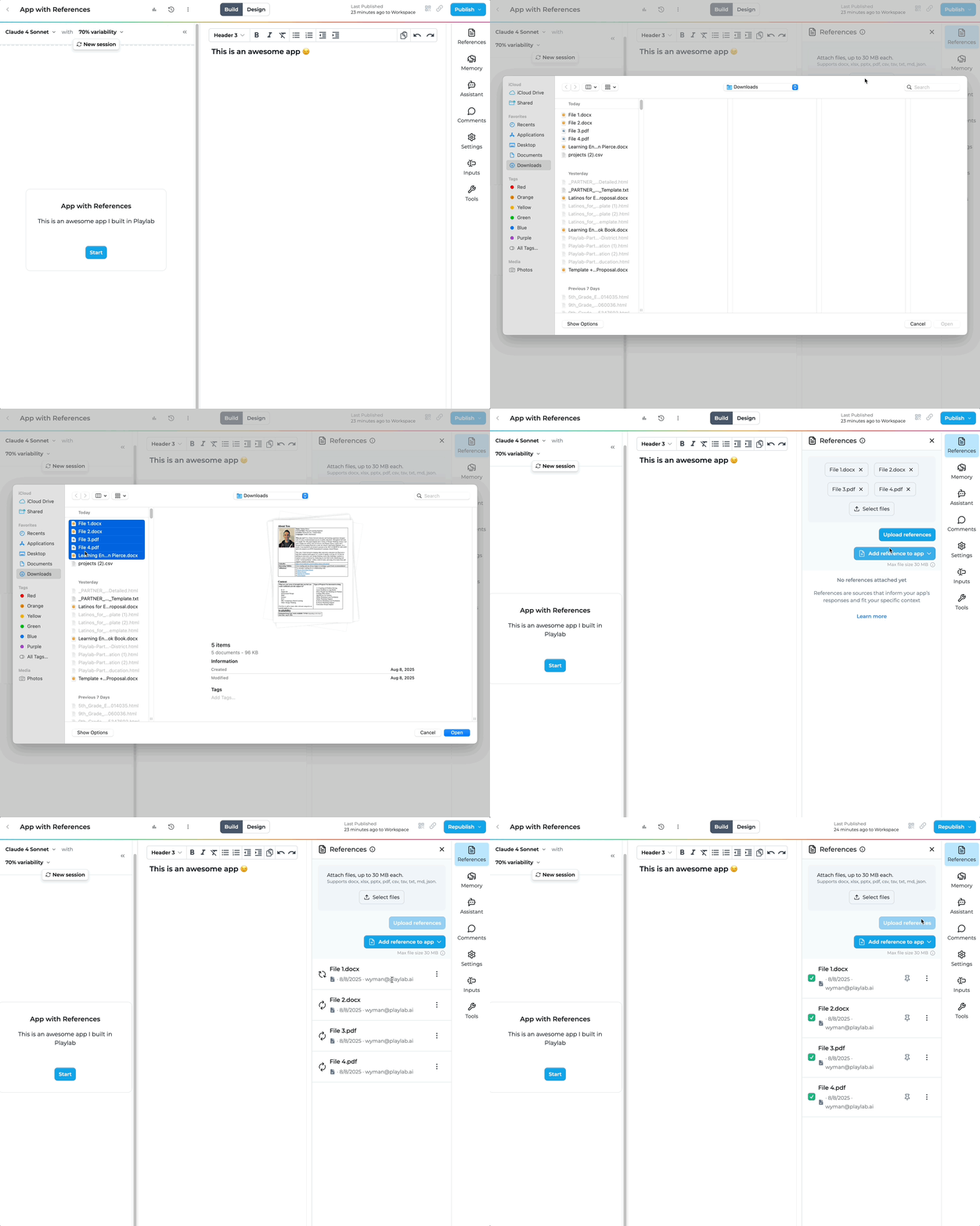
Upload Multiple Files (Optional)
- When selecting “File Upload”, you can now select up to 20 files simultaneously
- Hold Ctrl (Windows) or Cmd (Mac) to select multiple files
- All selected files must be in supported formats (PDF, DOCX, TXT, CSV, JSON, XLSX)
- Each file must be under 30 MB
Test Your References
- Test your app with references checked and unchecked
- Ensure references are improving the app’s outputs as expected
Supported Reference Types
Playlab supports various reference formats to ensure flexibility:
- Document Files: PDF, DOCX, TXT
- Data Files: CSV, JSON, XLSX
- URL Links: Links to websites, articles, and online resources
- Embedded Content: Videos, presentations, and interactive content
- Playlab Library Resources: Pre-vetted educational materials
Using References Effectively
References require fine-tuning to get the best results. Be specific in your app instructions on how and when to leverage the reference files.Examples of Effective Reference Usage:
For specific content requirements
For specific content requirements
- “Using the attached syllabus, generate a weekly schedule for the ‘Introduction to Biology’ course”
- “Referring to the list of Illustrative Mathematics 7th-grade math concepts and real-world scenarios, create a set of 10 word problems that apply algebraic thinking to everyday situations”
For safety guidelines and project requirements
For safety guidelines and project requirements
- “Based on the provided science fair rulebook, generate a checklist for students to ensure their projects meet all safety and presentation requirements”
What NOT to use references for
What NOT to use references for
- “Suggest creative and engaging science fair project ideas suitable for 7th-grade students across various scientific disciplines”
- General brainstorming where specific source material isn’t required
References Best Practices
When adding references to your Playlab app, keep these tips in mind:Quality Over Quantity
Quality Over Quantity
- Start Small: Begin with 3-5 core references that cover your app’s main functionality
- Expand Gradually: Add more references as needed. More is not always better
- Quality Over Quantity: Prioritize comprehensive, high-quality references over a large number of superficial ones
- Use Batch Upload Wisely: The ability to upload 20 files at once is great for efficiency, but ensure each file serves a clear purpose
File Formatting
File Formatting
- Use Appropriate Formats: Choose formats that preserve formatting and are easily parsed (e.g., PDF, markdown, structured text)
- Optimize File Sizes: Large files can slow down processing. Break up very large documents into smaller, focused files
- Ensure Readability: Use clear formatting and structure within documents for easier AI parsing
- Tables > Paragraphs: Tables are much stronger reference files since they’re easier for the AI to parse and categorize information
- Organize Before Upload: When uploading multiple files, organize them logically and ensure they complement each other
Testing and Refinement
Testing and Refinement
- Test your apps with references checked and unchecked to verify if the references are helping
- Sometimes key information from a reference is best just inserted into the prompt itself
- When using multiple references, test to ensure they work well together and don’t create conflicting information
Additional Tips
Additional Tips
- Curate Carefully: Choose high-quality, relevant resources that align with your educational objectives
- Be Specific: Clearly instruct the AI on how to use the provided resources
- Combine Resources: Use multiple types of resources for more comprehensive responses
- Update Regularly: Especially for public links, ensure your resources stay current
- Respect Copyright: Always use resources that you have permission to use or that are openly licensed
- Group Related Files: When uploading multiple files, consider grouping related content together for better organization
Frequently Asked Questions
What types of files can I upload as references?
What types of files can I upload as references?
How many references should I add to my app?
How many references should I add to my app?
Can I upload multiple files at the same time?
Can I upload multiple files at the same time?
What's the best way to organize multiple file uploads?
What's the best way to organize multiple file uploads?
Do all files upload at the same time, or one by one?
Do all files upload at the same time, or one by one?
Can I mix different file types in a single upload?
Can I mix different file types in a single upload?
What are Global References?
What are Global References?
How do I know if my references are being used effectively?
How do I know if my references are being used effectively?
What happens if I try to upload more than 20 files?
What happens if I try to upload more than 20 files?
What happens if one file fails during a multiple file upload?
What happens if one file fails during a multiple file upload?
Need Support?
If you encounter any issues while adding references:- Contact us at support@playlab.ai