

Watch How to Use the Design Tab
Watch a short clip demonstrating how to use the Design tab effectively.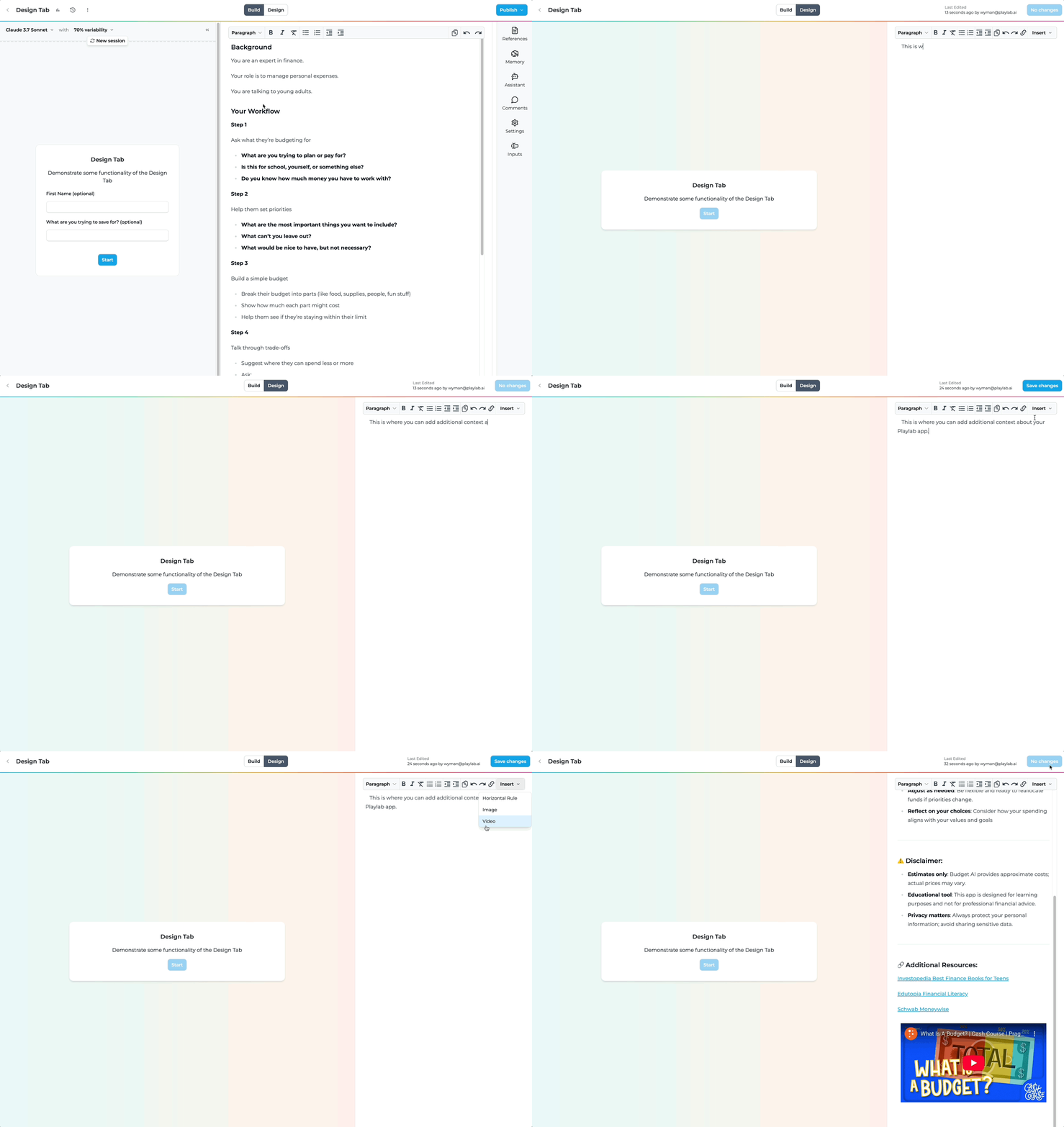
Follow these steps to create effective Design tabs
1
Access the Design Tab
Navigate to your app’s Design section.
- Open your Playlab app in edit mode
- Click on the Design tab in the top navigation bar
- You’ll see the Design Tab interface
2
Use the Design Tab
Format your documentation with the rich text editor.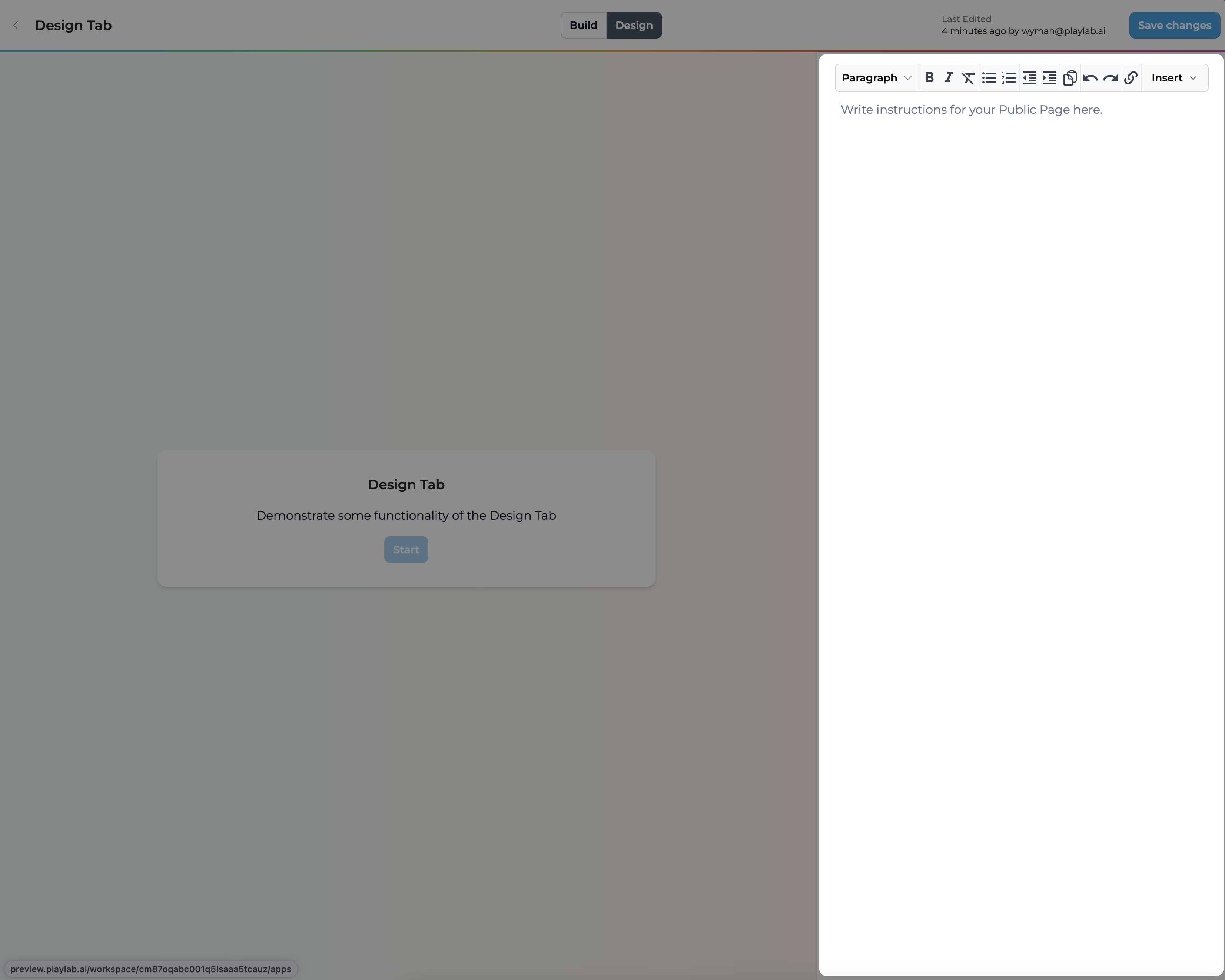

- Use the formatting toolbar to style your text:
- Bold, italic, and underline options
- Heading levels (H1, H2, H3)
- Bullet and numbered lists
- Code blocks for examples
3
Add Media and Links
Enrich your documentation with visual elements.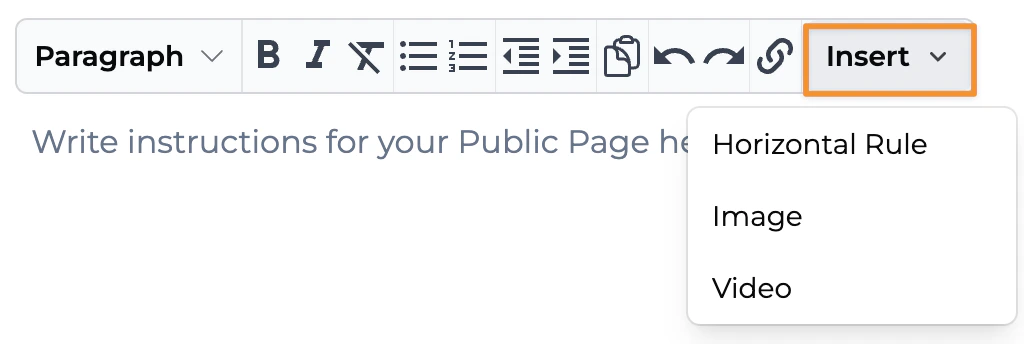
- Insert images by clicking the image icon and uploading or pasting a URL
- Embed videos from platforms like YouTube or Vimeo
- Add hyperlinks to external resources or references
4
Save and Preview
Review how your documentation will appear to users.
- Click the Save button to preserve your changes
- Use the Preview button to see how your documentation looks to end users
- Make adjustments as needed before finalizing
Documentation Best Practices
Consider these recommendations when creating documentation in the Design tab:- Start with a clear introduction explaining what your app does and its primary benefits
- Include step-by-step instructions for common use cases
- Add screenshots or GIFs to illustrate key features
- Provide examples of inputs and expected outputs
- Document limitations or known issues to set appropriate expectations
- Include FAQ section addressing common questions
- Structure content with headings for better readability
- Use callouts for important notes or warnings
Frequently Asked Questions
Will my Design Tab be visible in the published app?
Will my Design Tab be visible in the published app?
Yes, the content you create in the Design tab will be visible to all users who have access to your app. It appears as a dedicated Documentation tab in the published version.This makes it an essential part of the user experience for your application.
Can I import content from another source?
Can I import content from another source?
Currently, there’s no direct import feature. However, you can copy and paste content from other sources, and the editor will preserve most formatting.For more complex imports, you might need to adjust formatting after pasting.
Is there a limit to how much documentation I can add?
Is there a limit to how much documentation I can add?
There is no strict limit, but extremely large design tabs are not as effective.
How do I create and embed my own video or gif?
How do I create and embed my own video or gif?
You can use tools like Loom, Zoom, Canvas Studio (if you use Canvas), or any other video or screen capture software to record a demonstration of your tool or any content you’d like to showcase.
Upload Video
Upload Video
Video
Next, download your video and upload it publicly to YouTube or Vimeo.Once uploaded, copy the video link, go to your design panel, and click Insert, then select Video to embed it.
Next, download your video and upload it publicly to YouTube or Vimeo.Once uploaded, copy the video link, go to your design panel, and click Insert, then select Video to embed it.
Upload Gif
Upload Gif
Download your video as an MP4 file.~~~~~~Upload the MP4 file to Ezgif.~~~~~~Click Convert to GIF.Once converted, right-click (or Control + click on Mac) the GIF and select Copy Image Address.Insert the GIF by clicking Insert, then selecting Image in the design tab. Paste the copied image address into the **Image Link **field.Paste the image address into the **Image Link **field.:Video demonstration:
You’re good to go!
Need Support?
If you encounter any issues while using the Design tab:- Contact us at support@playlab.ai